Perl’s Open3, Re-Explained

I recently went spelunking into a core Perl module that I previously knew nothing about, IPC::Open3.  After fifteen years of developing in Perl I finally had a reason to use it.

If you’re reading this, it’s probably because you went looking for information on how to use open3 because the module’s documentation is bad.  I mean it’s really, really terrible.

Not only will you not know how to use open3 after reading the docs, you may become convinced that maybe open3 isn’t the module that you need, or maybe it would work but you’d just be better off looking for something else because this is too damn hard to use.

Fear not, intrepid reader, because if I can figure it out so can you.  But I will try to save you some of the leg work I went through. There’s precious little information scattered online, because this isn’t a popular package.  My loss is your gain, hopefully this helps you.

Why IPC::Open3?

When Would I Use IPC::Open3?

open3 is used when you need to open three pipes to another process.  That might be obvious from the name as well as the package’s synopsis:

$pid = open3( \*CHLD_IN,
              \*CHLD_OUT,
              \*CHLD_ERR,
              'some cmd and args',
              'optarg', ...
            );

Why would you do that?  The most obvious situation is when you want to control STDIN, STDOUT, and STDERR simultaneously.  The example I provide below, which is not contrived by the way but adapted from real production code, does exactly that.

There Are Lots Of Modules To Make This Easier, Why Should I Use IPC::Open3?

IPC::Open3 is part of the Perl core.  There’s a lot to be said for using a library that’s already installed and doesn’t have external dependencies vs. pulling in someone’s write-once-read-never Summer of Code academic project.

In addition, the modules that I found only served to hide the complexity of Open3, but they did it badly and didn’t really remove much code compared to what I came up with.

What Else Do I Need?

One of the things that’s not obvious from the Open3 docs are that you’re not going to use IPC::Open3 by itself.  You need a couple of other packages (also part of core) in order to use it effectively.

How I Used IPC::Open3

In our example, we’re going to fork a separate process (using open3) to encrypt a file stream using gpg.  gpg will accept a stream of data, encrypt it, and output to a stream.  We also want to capture errors sent to STDERR.

In a terminal, using bash, this would be really easy: gpg --decrypt < some_file > some_file.pgp 2>err.out

We could do all of this in Perl by writing temporary files, passing special file handle references into gpg as arguments, and capturing STDERR the old fashioned way, all using a normal open().  But where’s the fun in that?

First, lets use the packages we’ll need:

use IO::Handle;
use IO::Select;
use IPC::Open3;

IO::Handle allows us to operate on handles using object methods.  I don’t typically use it, but this code really appreciates it.  IO::Select does the same for select, but it helps even more than IO::Handle here.

use constant INPUT_BUF_SZ  => 2**12;
use constant OUTPUT_BUF_SZ => 2**20;

You might want to experiment to find the best buffer sizes.  The input buffer should not be larger than the pipe buffer on your particular system, else you’ll block trying to put two pounds of bytes into a one pound buffer.

Now, using IO::Handle we’ll create file handles for the stdin, stdout, and stderr that our forked process will read and write to:

my ( $in,
     $out,
     $err,
   ) = ( IO::Handle->new,
         IO::Handle->new,
         IO::Handle->new
       );

Call open3, which (like fork) gives us the PID of our new process.

Note: If we don’t call waitpid later on we’ll create a zombie after we’re done.

my $pid = open3( $in, $out, $err, '/usr/bin/gpg', @gpg_options );

if ( !$pid ) {
    die "failed to open pipe to gpg";
}

One of the features of IO::Select is that it allows us to find out when a handle is blocked. This is important when the output stream is dependent on the input stream, and each stream depends on a pipe of limited size.

We’re going to repeatedly loop over the handles, looking for a stream that is active, and read/write a little bit before continuing to loop.  We do this until both our input and output is exhausted.  It’s pretty likely that they’ll be exhausted at different times, i.e. we’ll be done with the input sometime before we’re done with the output.

As we exhaust each handle we remove it from the selection of possible handles, so that the main loop terminates naturally.

The value passed to can_write and can_read is the number of seconds to wait for the handle to be ready.  Non-zero timeouts cause a noticeable delay, while not setting it at all will cause us to block until the handle is ready, so for now we’ll leave it at zero.

# $unencrypted_fh and $encrypted_fh should be defined as
# handles to real files

my $sel = IO::Select->new;

$sel->add( $in, $out, $err );

# loop until we don't have any handles left

while ( my @handles = ( $sel->handles) ) {
    # read until there's nothing left
    #
    # write in small chunks so we don't overfill the buffer
    # and accidentally cause the pipe to block, which will
    # block us
    while ( my @ready = ( $sel->can_write(0) ) ) {
        for my $fh ( @ready ) {
            if ( $fh == $in ) {
                # read a small chunk from your source data
                my $read = read( $unencrypted_fh,
                                 my $bytes,
                                 INPUT_BUF_SZ,
                               );

                # and write it to our forked process
                #
                # if we're out of bytes to read, close the
                # handle
                if ( !$read ) {
                    $sel->remove( $fh );
                    $fh->close;
                }
                else {
                    syswrite( $fh, $bytes );
                }
            }
            else {
                die "unexpected filehandle for input";
            }
        }
    }

    while ( my @ready = ( $sel->can_read(0) ) ) {
        # fetch the contents of STDOUT and send it to the
        # destination
        for my $fh ( @ready ) {
            # this buffer can be much larger, though in the
            # case of gpg it will generally be much smaller
            # than the input was. The process will block if
            # the output pipe is full, so you want to pull as
            # much out as you can.

            my $read = sysread( $fh, my $bytes, OUTPUT_BUF_SZ );

            if ( !$read ) {
                $sel->remove( $fh );
                $fh->close;
            }
            elsif ( $fh == $out ) {
                # $encrypted_fh is whatever we're throwing output
                # into

                syswrite( $encrypted_fh, $bytes ) if $read;
            }
            elsif ( $fh == $err ) {
                print STDERR $bytes;
            }
            else {
                die "unexpected filehandle for output";
            }
        }
    }

    # IO::Handle won't complain if we close a handle that's
    # already closed
    $sel->remove( $in ); $in->close;
    $sel->remove( $out ); $out->close;
    $sel->remove( $err ); $err->close;

    waitpid( $pid, 0 );
}

That’s actually about it.

I keep my buffer for input small, as pipe buffers tend to be small.  If you overload your pipe your program will hang indefinitely (or until an alarm goes off, if you set one).  4096 bytes seems to be the limit, though your own limit may be different.  When in doubt, be conservative and go smaller.

The output buffer can afford to be bigger, up to the limit of available memory (but don’t do that).  In our example of encryption gpg will consume much more than it produces, so a larger buffer doesn’t really buy you anything but if we were decrypting it would be the reverse and a larger buffer would help immensely.
WordPress Error: cURL error 6: Couldn’t resolve host ‘dashboard.wordpress.com’

Background:

I maintain a WordPress blog that uses Jetpack’s Stats package.

Issue:

We started getting this error message when opening the ‘Stats’ page:

We were unable to get your stats just now. Please reload this page to try again. If this error persists, please contact support. In your report please include the information below.

User Agent: 'Mozilla/5.0 (X11; Linux x86_64; rv:54.0) Gecko/20100101 Firefox/54.0'
Page URL: 'https://blog.server.tld/wp-admin/admin.php?page=stats&noheader'
API URL: 'https://dashboard.wordpress.com/wp-admin/index.php?noheader=true&proxy&page=stats&blog=XXX&charset=UTF-8&color=fresh&ssl=1&j=1:5.0&main_chart_only'
http_request_failed: 'cURL error 6: Couldn't resolve host 'dashboard.wordpress.com''

The entire Stats block in the Dashboard was empty, and the little graph that shows up in the Admin bar on the site was empty as well.

Other errors noticed:

RSS Error: WP HTTP Error: cURL error 6: Couldn't resolve host 'wordpress.org'
RSS Error: WP HTTP Error: cURL error 6: Couldn't resolve host 'planet.wordpress.org'

These errors were in the WordPress Events and News section, which was also otherwise empty.

This whole thing was ridiculous on it’s face, as the hosts could all be pinged successfully from said server.

I checked with Jetpack’s support, per the instructions above, and got a non-response of “check with your host.”  Well, this isn’t being run on a hosting service so you’re telling me to ask myself.  Thanks for the help anyway.

Resolution:

The machine in question had just upgraded PHP, but Apache had not been restarted yet. The curl errors don’t make much sense, but since when does anything in PHP make sense?

It was kind of a “duh!” moment when I realized that could be the problem.  Restarting Apache seems to have solved it.

NiFi HTTP Service

I’m attempting to set up an HTTP server in NiFi to accept uploads and process them on-demand.  This gets tricky because I want to submit the files using an existing web application that will not be served from NiFi, which leads to trouble with XSS (Cross-Site Scripting) and setting up CORS (Cross Origin Resource Sharing [1]).

The trouble starts with just trying to PUT or POST a simple file.  The error in Firefox reads:

Cross-Origin Request Blocked: The Same Origin Policy disallows reading the remote resource (Reason: CORS header 'Access-Control-Allow-Origin' missing).

You can serve up the Javascript that actually performs the upload from NiFi and side-step XSS, but you may still run into trouble with CORS.  You’ll have trouble even if NiFi and your other web server live on the same host (using different ports, of course), as they’re considered different hosts for the purposes of XSS prevention.

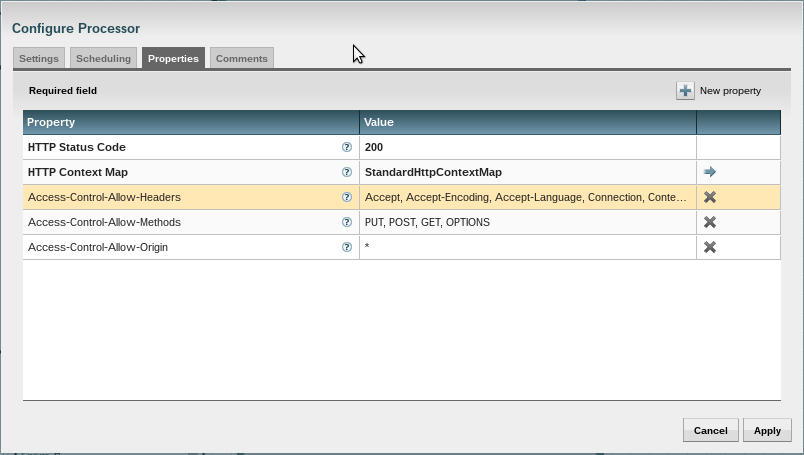
handlehttpresponse screen shot
HandleHttpResponse processor config

To make this work, you’ll need to enable specific headers in the HandleHttpResponse processor.  Neither the need to set some headers, nor the headers that need to be set, are documented by NiFi at this time (so far as I can tell).

  1. Open the configuration of the HandleHttpResponse processor
  2. Add the following headers and values as properties and values, but see below for notes regarding the values
    Access-Control-Allow-Origin: *
    
    Access-Control-Allow-Methods: PUT, POST, GET, OPTIONS
    
    Access-Control-Allow-Headers: Accept, Accept-Encoding, Accept-Language, Connection, Content-Length, Content-Type, DNT, Host, Referer, User-Agent, Origin, X-Forwarded-For

You may want to review the value for Access-Control-Allow-Origin, as the wildcard may allow access to unexpected hosts.  If your server is public-facing (why would you do that with NiFi?) then you certainly don’t want a wildcard here.  The wildcard makes configuration much simpler if NiFi is strictly interior-facing, though.

The specific values to set for Access-Control-Allow-Methods depend on what you’re doing.  You’ll probably need OPTIONS for most cases.  I’m serving up static files so I need GET, and I’m receiving uploads that may or may not be chunked, so I need POST and PUT.

The actual headers needed for Access-Control-Allow-Headers is a bit variable.  A wildcard is not an acceptable value here, so you’ll have to list every header you need separately — and there are a bunch of possible headers.  See [3] for an explanation and a fairly comprehensive list of possible headers.  Our list contains a small subset that covers our basic test cases; your mileage may vary.

You may also want to set up a RouteOnAttribute processor to ignore OPTIONS requests (${http.method:equals('OPTIONS')}), otherwise you might see a bunch of zero-byte files in your flow.

References:

[1] https://developer.mozilla.org/en-US/docs/Web/HTTP/Access_control_CORS

[2] http://stackoverflow.com/questions/24371734/firefox-cors-request-giving-cross-origin-request-blocked-despite-headers

[3] http://stackoverflow.com/questions/13146892/cors-access-control-allow-headers-wildcard-being-ignored

“ERROR: … failed to process… ” in NiFi

I was greeted by a few cryptic things in NiFi this morning during my morning check-in.

  1. A PutSQL processor was reporting an error:
    "ERROR: PutSQL[id=$UUID>]failed to process due to java.lang.IndexOutOfBoundsException: Index: 1, Size: 1; rolling back session: java.lang.IndexOutOfBoundsException: Index: 1, Size: 1"
  2. There were no recent errors counted in the LogAttribute counter we set up to record errors;
  3. The Tasks/Time count in the PutSQL processor was though the roof, despite the errors and lack of successes.

Needless to say, the processor was all bound up and a number of tasks were queued.  Not a good start to my day.

I checked the data provenance and didn’t see anything remarkable about the backed-up data.  The error message suggests (to me) that the first statement parameter is at fault, and that parameter happened to be a date (which has been problematic for me in NiFi with a MySQL backend).  Neither that value, nor the rest of the values, were remarkable or illegal for the fields they’re going into.

It wasn’t until I spent some time looking over the source data that I saw the problem: there is a duplicate key in the data.  This error is NiFi’s way of complaining about it.

In our case the underlying table doesn’t have good keys, or a good structure in general, and I’m planning to replace it soon anyway, but updating the primary keys to allow the duplicate data (because it IS valid data, despite the table design) has solved the issue.

Komodo IDE Headaches

I’m slowly coming around to the idea that an IDE might be useful for PHP/Symfony projects (still not convinced about other languages and frameworks) and I’m currently trying out ActiveState’s Komodo IDE 10 on Linux.

It looks great but it’s… buggy.  One day in and I’m already getting frustrated with it.

  • The preference file doesn’t appear to be saved until the application is closed, if the application crashes it’s not clear that your changes will be saved.  This might be a safety feature, but probably not, because…
  • At least some preferences don’t take effect until the application is closed.  Not the ones that you’re warned about like checking remote files for changes, but other ones like ‘Allow file contents to override Tab and Indentation settings’ (which itself is unreliable since at least 2011).
  • When changing preferences, there is more than one place to change: Edit / Preferences, Edit / Current File Preferences, and Project / Project Preferences (the last is not under the Edit menu).
  • The cursor blinks by default (which is super annoying when you’re moving the cursor around the screen) and there isn’t an explicit option to disable it.  You have to create a custom JavaScript script that executes at every file open.
  • The toolbar icons are heavily styled, making their use opaque and the tooltips mandatory reading.
  • It has already crashed while closing — which, per the above, I’m doing a lot.

It’s not all bad, there are some really nice features:

  • Vi keybindings, so things like ‘A’ to start appending to the current line, or ‘/’ to search the current file, are really nice to someone who uses vim every day.
  • I do appreciate the ability to script things
  • The syntax highlighting and coloring seems more reliable (i.e. harder to confuse) than average.
  • The installation to a local directory was painless, and an icon properly shows up in the applications menu (I use Mate).  The default installation dir is to your home directory instead of /usr/local (which is the right thing to do for trial software, imho).

I want to like this editor, I really do, but it’s just going downhill as I work with it more.  At $250 per license it’s hard to justify the expense to my boss unless I really like it.

Beautiful Code

The mark of a master programmer is someone who writes code that a novice can debug.
— attribution unknown

I read this quote, or something very similar to it, a long time time ago when I was just starting out.

I take the idea behind that quote to mean that master programmers have the experience to find the simplest solutions, which are easier to understand, but they also make their code easier to read so errors stand out.

It came back to me while reading a novice’s request for help in debugging something.  The example was a mess, with lots of extra activity, but it was also dense and poorly formatted.  The very simple bug was hard to see because of the sheer amount of code and the inconsistent formatting.

I strive to find simple solutions to the code I write, but I also strive to make my code neatly formatted and well-spaced.  I generally limit my lines to ~78 characters; I vertically align related operators; I leave space around operators.  This goes hand-in-hand with simple code: short functions that only do one thing; effective naming of things; do the least possible.  Together these generally make code that is both robust and easy to maintain.

I think of formatting to be like engineering a bridge.  Dense code is like big thick columns, steel plates, and stone architecture — it gets the job done, but it looks so heavy.  The best bridges are light and airy, full of empty space, yet they are stronger and more resilient.

PS: if you know this quote, and know who said it first, please drop me a line so that I can attribute it properly!

NiFi Build Error

I’m testing NiFi out on my local Gentoo installation to prepare for an implementation at work, and after a rather lengthy build/test process (“ten minutes” my fanny) ran into this error:

$ mvn clean install
[INFO] Scanning for projects...
...
'Script Engine' validated against 'ECMAScript' is invalid because Given value not found in allowed set 'Groovy, lua, python, ruby'

This error left me scratching my head.  Nothing related to JavaScript/ECMAScript dependencies were mentioned anywhere.  How would you get it, anyway?  Webkit, I suppose…

Sudden epiphany: this is a new Gentoo installation, and this program, including the build script, is running Java.  Gentoo doesn’t install Sun Oracle’s Java by default, but instead comes with IcedTea out of the box.  It’s acceptable for some simple uses, but is buggy for any complex. (Minecraft is a great example where it just doesn’t work.)  I haven’t used Java for anything yet, so I hadn’t installed the JDK yet.  The build instructions specify JDK 1.7 or higher, but I didn’t think anything of it because I’m used to just having it installed.

echo "dev-java/oracle-jdk-bin Oracle-BCLA-JavaSE" \
  >> /etc/portage/package.license/file
emerge -av dev-java/oracle-jdk-bin
...
$ mvn clean install
[INFO] Scanning for projects...
...
[INFO] BUILD SUCCESS

Finally!

Bridging Wired and Wireless Networks, Gentoo-style

I want my wired and wireless networks to share a single 192.168.1.x address space (instead of separate 192.168.0.x and 192.168.1.x addresses).

In order to do that, we need to set up a bridge to merge disparate networks into a single space.

Part 1: The Basic Configuration

ADMtek NC100 (uses tulip driver)
Ralink RT61 PCI (uses rt61pci driver)
hostapd
linux 4.1.15-gentoo-r1
net-misc/bridge-utils 1.5
net-wireless/iw 3.17

Part 2: Making It Work

I started out creating a basic bridge, using the Gentoo Wiki as a guide:

cd /etc/init.d
ln -s net.lo net.br0

/etc/init.d/net.br0 start

There’s no need to change how hostapd starts; it still talks to wlan0 (not br0).

# /etc/conf.d/net

modules_wlan0="!iwconfig !wpa_supplicant"
config_wlan0="null"
config_eth0="null"
config_br0="192.168.1.1/24"
brctl_br0="setfd 0
sethello 10
stp off"
bridge_br0="eth0 wlan0"

The Problem

The above config is naive and doesn’t work right.  I got this error:

Can't add wlan0 to bridge br0: Operation not supported

Huh.  There’s nothing indicative in dmesg about the error, the last entry shows the bridge being created on the wired card and then being taken down.  Just to be sure, I created a bridge with just eth0 and it worked:

$ brctl show
bridge name   bridge id           STP enabled   interfaces
br0           8000.00045a42a698   no            eth0

After casting about a bit, I found a serverfault.com page that pointed to this fix:

$ iw dev wlan0 set 4addr on
$ brctl addif br0 wlan0

That works, but that won’t do me much good as a long-term solution.  I would need to pay a visit to the basement after every planned reboot and unplanned power outage, or else nobody can get onto the network.

( More about the 4addr option here. )

You can’t just add the option to modules_wlan0, it doesn’t work that way.  A quick visit back to the wiki suggested the solution, though, which is to define a preup function where we can execute arbitrary commands.

The Working Config

These statements are in addition to the WAN interface config:

# /etc/conf.d/net
modules_wlan0="!iwconfig !wpa_supplicant"
config_wlan0="null"
config_eth0="null"
config_br0="192.168.1.1/24"
brctl_br0="setfd 0
sethello 10
stp off"
bridge_br0="eth0 wlan0"

preup() {
    # br0 uses wlan0, and wlan0 needs to set the
    # 4addr option before being used on a bridge
    if echo "${IFACE}" | grep -q 'br0' ; then
        /usr/sbin/iw dev wlan0 set 4addr on
    fi

    return 0
}

Then do all the accounting to clean up:

rc-update add net.br0 default
rc-update del net.eth0 default
rc-update del net.wlan0 default

I also had to update my iptables config to refer to br0 instead of eth0 and wlan0.

Finally, a reboot to test that everything starts properly.

New Year’s Resolutions

12 New Year’s Resolutions
(Programmer’s Edition)

 640x480
 800x600
1024x768
1280x720
1366x768
1440x900
1600x900
1680x1050
1920x1080
1920x1200
3200x1800
3840x2160

Setting up a Gentoo-Based Dual-Stack Router

Our network has been based around a home-built router for quite some time, ever since I got fed up with the crappy ActionTec router that Verizon bundled with our FiOS service. (If you’re going to offer high-speed internet, you should probably bundle equipment that can actually keep up.) I had originally followed a slightly older version of these instructions to get a nice basic router going. But I finally wanted better. I wanted the bright, shiny, new thing. I wanted IPv6.

So, here’s my instructions for going from an existing IPv4 router to dual-stack IPv4/6.

Note: I am using dnsmasq for DNS and DHCP, hostapd for wireless management, and an iptables firewall. Since Verizon still doesn’t widely support consumer IPv6, I’m using a tunnel broker to get my /6 address. If you’re using a different setup your mileage may vary. If you find anything that I appear to have forgotten, please let me know!

Step 1: Recompile the Kernel

This should be obvious: if you want to run ipv6 you need ipv6 support in your kernel. In order to trim as much off my kernel as possible I did not have it built in, and had to recompile.

You should also add netfilter support for ipv6 so that your firewall will work.

Networking support  --->
    Networking options  --->
        <*>   The IPv6 protocol  --->
            <*>   IPv6: IPv6-in-IPv4 tunnel (SIT driver)
        [*] Network packet filtering framework (Netfilter)  --->
            IPv6: Netfilter Configuration  --->
                <M> IPv6 NAT
                <M> IP6 tables support (required for filtering)
                <M>   Packet filtering
                <M>   ip6tables NAT support
                <M>     MASQUERADE target support
                ... other filtering options as you may need for your situation

Step 2: Update Your IPv6 Support

Again, it was never compiled in, in order to trim off unused bits of code. Add ‘ipv6’ to your USE variable and emerge --newuse world

Step 3: Install network tools (if they aren’t already)

emerge --noreplace sys-apps/iproute2 net-firewall/iptables

Step 4 (optional): Set up your tunnel

If your ISP doesn’t provide ipv6, and many don’t, you need to request an address range from a tunnel broker. I’m using Hurricane Electric, which is free, but there are others — see this list or just google it.

If you have multiple machines on your network (which is assumed, since this is a router guide), you may prefer a /48, so that autoconfig works nicely, instead of the default /64. This guide assumes a /48.

Going forward, replace 2001:470:891a: with your own /48 range.

Now activate your tunnel:

ip tunnel add he-ipv6 mode sit remote 1.2.3.4 local 5.6.7.8 ttl 255
ip link set he-ipv6 up
ip addr add 2001:470:1f06:2a3::2/64 dev he-ipv6
ip route add ::/0 dev he-ipv6
ip -f inet6 addr

Step 5: Update Your Net Config

I have two wired and one wireless card in my router. Here’s what my /etc/conf.d/net looks like:

# enp2s0 is my exterior wired nic (aka public facing)
# enp3s5 is my interior wired nic
# wlp3s6 is my interior wireless nic

dhcp_enp2s0="nodns" # we choose our own DNS, tyvm

config_enp3s5="192.168.0.1/24 2001:470:891a:0::/64"

modules_wlp3s6="!iwconfig !wpa_supplicant"
config_wlp3s6="192.168.1.1/24 2001:470:891a:1::/48"
dns_servers_wlp3s6="127.0.0.1"

After making appropriate changes, restart your NICs. If you’re working remotely, you may want to be connected via two paths instead of just one (so when you inevitably get bounced and can’t reconnect, you still have a way back in).

A properly-configured set of addresses looks like this:

# ip addr
1: lo: &lt;LOOPBACK,UP,LOWER_UP&gt; mtu 65536 qdisc noqueue state UNKNOWN group default
    link/loopback 00:00:00:00:00:00 brd 00:00:00:00:00:00
    inet 127.0.0.1/8 brd 127.255.255.255 scope host lo
       valid_lft forever preferred_lft forever
    inet6 ::1/128 scope host
       valid_lft forever preferred_lft forever
2: enp2s0: &lt;BROADCAST,MULTICAST,UP,LOWER_UP&gt; mtu 1500 qdisc pfifo_fast state UP group default qlen 1000
    link/ether 00:e0:4d:bf:03:f5 brd ff:ff:ff:ff:ff:ff
    inet 108.20.118.17/24 brd 108.20.118.255 scope global enp2s0
       valid_lft forever preferred_lft forever
    inet6 fe80::cbdf:25c0:c948:f4bb/64 scope link
       valid_lft forever preferred_lft forever
3: enp3s5: &lt;BROADCAST,MULTICAST,UP,LOWER_UP&gt; mtu 1500 qdisc pfifo_fast state UNKNOWN group default qlen 1000
    link/ether 00:04:5a:42:a6:98 brd ff:ff:ff:ff:ff:ff
    inet 192.168.0.1/24 brd 192.168.0.255 scope global enp3s5
       valid_lft forever preferred_lft forever
    inet6 2001:470:891a::/64 scope global
       valid_lft forever preferred_lft forever
    inet6 fe80::204:5aff:fe42:a698/64 scope link
       valid_lft forever preferred_lft forever
4: wlp3s6: &lt;BROADCAST,MULTICAST,UP,LOWER_UP&gt; mtu 1500 qdisc mq state UP group default qlen 1000
    link/ether 00:1a:ef:07:4d:a7 brd ff:ff:ff:ff:ff:ff
    inet 192.168.1.1/24 brd 192.168.1.255 scope global wlp3s6
       valid_lft forever preferred_lft forever
    inet6 2001:470:891a:1::/64 scope global
       valid_lft forever preferred_lft forever
    inet6 fe80::21a:efff:fe07:4da7/64 scope link
       valid_lft forever preferred_lft forever
5: sit0@NONE:  mtu 1480 qdisc noop state DOWN group default
    link/sit 0.0.0.0 brd 0.0.0.0
6: he-ipv6@NONE: &lt;POINTOPOINT,NOARP,UP,LOWER_UP&gt; mtu 1480 qdisc noqueue state UNKNOWN group default
    link/sit 108.20.118.17 peer 209.51.161.14
    inet6 2001:470:1f06:2a3::2/64 scope global
       valid_lft forever preferred_lft forever
    inet6 fe80::6c14:7611/64 scope link
       valid_lft forever preferred_lft forever

Test it with a ping:

ping6 www.kame.net

Step 6: Reconfigure dnsmasq

You’ll need to add router advertisments and your new addresses. Rather than hard-coding an address, dnsmasq offers a ‘constructor’ label which figures it out automatically. Here’s the relevant section from my /etc/dnsmasq.conf:

domain-needed
bogus-priv
domain=jonesling.us
dhcp-authoritative
enable-ra
dhcp-range=192.168.0.20,192.168.0.100,12h
dhcp-range=192.168.1.20,192.168.1.100,12h
dhcp-range=192.168.2.20,192.168.2.100,12h
dhcp-range=::,constructor:enp3s5,ra-names,slaac,12h
dhcp-range=::,constructor:wlp3s6,ra-names,slaac,12h
resolv-file=/etc/resolv.dnsmasq
selfmx
enable-ra

And restart it: /etc/init.d/dnsmasq restart

Step 7: Configure your firewall

Pretty much every iptables reference in your firewall config will be mirrored with an ip6tables command.

Here’s my script to set up iptables (if you see an error or something stupid, I would appreciate your criticism – paired with your reasoning on why it should be changed so I can know better for next time).

#!/bin/bash
# based on http://www.gentoo.org/doc/en/home-router-howto.xml

# set to '0' to lock the kids out
OPEN_INTERNET=1

# these systems can get shut out when OPEN_INTERNET isn't true
declare -a NO_SURFING=( 'wii-u'
                        'kids-computer'
                      )

# these systems never get shut out
declare -a OK_SURFING=( 'parents-computer'
                        'parents-phone'
                      )

# these ports take precedence over CLOSED_PORTS
declare -a OPEN_TCP_PORTS=( 'ssh'
                            'http'
                            'mail'
                            'submission'
                          )

declare -a OPEN_UDP_PORTS=( 'submission' )

# if the port is meant to be closed, we close tcp *AND* udp
declare -a CLOSED_PORTS=( '0:1055'
                          'svn'
                          'distcc'
                          'x11'
                          'nfs'
                          'icpv2'
                          'mysql'
                          'rtsp'
                          '3128' # squid
                          '3130' # squid ICP
                          '3551' # nisport
                        )

declare -a LAN_SERVICES=( "svn" )

# blacklisted IPs and ranges
# http://www.iana.org/assignments/ipv4-address-space/ipv4-address-space.xhtml
declare -a IP_BLACKLIST=( # APINIC
                          # AFRINIC
                          # LACNIC
                          ...
                        )

LAN=enp3s5
WLAN=wlp3s6
WAN=enp2s0
SIT=he-ipv6

INSIDE=( $LAN $WLAN )

LOCAL_RANGE_IPV4='192.168.0.0/16'
LOCAL_RANGE_IPV6='2001:470:891a::'

# First we flush our current rules
iptables -F
iptables -t nat -F
ip6tables -F
ip6tables -t nat -F

# Setup default policies to handle unmatched traffic
iptables  -P INPUT ACCEPT
iptables  -P OUTPUT ACCEPT
iptables  -P FORWARD DROP
ip6tables -P INPUT ACCEPT
ip6tables -P OUTPUT ACCEPT
ip6tables -P FORWARD DROP

# Then we lock our services so they only work from the LAN
iptables  -I INPUT 1 -i ${LAN}  -j ACCEPT
iptables  -I INPUT 1 -i ${WLAN} -j ACCEPT
iptables  -I INPUT 1 -i lo      -j ACCEPT
ip6tables -I INPUT 1 -i ${LAN}  -j ACCEPT
ip6tables -I INPUT 1 -i ${WLAN} -j ACCEPT
ip6tables -I INPUT 1 -i lo      -j ACCEPT

# block members of IP_BLACKLIST, plus any addresses passed in on the
# command line
for IP in ${IP_BLACKLIST[@]} ; do
    iptables -I INPUT -s ${IP} -p TCP --dport ssh -j DROP
done

for IP in $@; do
    iptables -I INPUT -s ${IP} -d 0/0 -j REJECT
done

iptables  -A INPUT -p UDP --dport bootps -i ${WAN} -j REJECT
ip6tables -A INPUT -p UDP --dport bootps -i ${SIT} -j REJECT
iptables  -A INPUT -p UDP --dport domain -i ${WAN} -j REJECT
ip6tables -A INPUT -p UDP --dport domain -i ${SIT} -j REJECT

# Explicitly allow access to services on the WAN
for SERVICE in ${LAN_SERVICES[@]} ; do
    for IFACE in ${INSIDE[@]} ; do
        iptables  -A INPUT -p TCP --dport svn -i ${IFACE} -j ACCEPT
        iptables  -A INPUT -p UDP --dport svn -i ${IFACE} -j ACCEPT
        ip6tables -A INPUT -p TCP --dport svn -i ${IFACE} -j ACCEPT
        ip6tables -A INPUT -p UDP --dport svn -i ${IFACE} -j ACCEPT
    done
done

# Allow access to our server from the WAN
for PORT in ${OPEN_TCP_PORTS[@]} ; do
    iptables  -A INPUT -p TCP --dport $PORT -i ${WAN} -j ACCEPT
    ip6tables -A INPUT -p TCP --dport $PORT -i ${SIT} -j ACCEPT
done

for PORT in ${OPEN_UPD_PORTS[@]} ; do
    iptables  -A INPUT -p UDP --dport PORT -i ${WAN} -j ACCEPT
    ip6tables -A INPUT -p UDP --dport PORT -i ${SIT} -j ACCEPT
done

# Drop TCP / UDP packets to privileged ports
for PORT in ${CLOSED_PORTS[@]} ; do
    iptables  -A INPUT -p TCP -i ${WAN} -d 0/0 --dport ${PORT} -j DROP
    ip6tables -A INPUT -p TCP -i ${SIT} -d 0/0 --dport ${PORT} -j DROP

    iptables  -A INPUT -p UDP -i ${WAN} -d 0/0 --dport ${PORT} -j DROP
    ip6tables -A INPUT -p UDP -i ${SIT} -d 0/0 --dport ${PORT} -j DROP
done

iptables  -I FORWARD -i ${LAN} -d $LOCAL_RANGE_IPV4 -j ACCEPT
iptables  -A FORWARD -i ${LAN} -s $LOCAL_RANGE_IPV4 -j ACCEPT
ip6tables -I FORWARD -i ${LAN} -d $LOCAL_RANGE_IPV6 -j ACCEPT
ip6tables -A FORWARD -i ${LAN} -s $LOCAL_RANGE_IPV6 -j ACCEPT

if (( OPEN_INTERNET )); then
    echo 'yay, everybody gets internet'
    iptables  -I FORWARD -i ${WLAN} -d $LOCAL_RANGE_IPV4 -j ACCEPT
    iptables  -A FORWARD -i ${WLAN} -s $LOCAL_RANGE_IPV4 -j ACCEPT
    ip6tables -I FORWARD -i ${WLAN} -d $LOCAL_RANGE_IPV6 -j ACCEPT
    ip6tables -A FORWARD -i ${WLAN} -s $LOCAL_RANGE_IPV6 -j ACCEPT
else
    echo "boo, only ${OK_SURFING[@]} get internet"
    for IP in ${OK_SURFING[@]}; do
        iptables -I FORWARD -i ${WLAN} -d $IP/255.255.255.255 -j ACCEPT
        iptables -A FORWARD -i ${WLAN} -s $IP/255.255.255.255 -j ACCEPT
    done
fi

iptables  -A FORWARD -i ${WAN} -d $LOCAL_RANGE_IPV4 -j ACCEPT
ip6tables -A FORWARD -i ${WAN} -d $LOCAL_RANGE_IPV6 -j ACCEPT

iptables  -t nat -A POSTROUTING -o ${WAN} -j MASQUERADE
ip6tables -t nat -A POSTROUTING -o ${SIT} -j MASQUERADE

# This is so when we boot we don't have to run the rules by hand
/etc/init.d/iptables save
/etc/init.d/ip6tables save

# fail2ban should be reloaded after flushing iptables
/etc/init.d/fail2ban reload

Step 8: Update your DNS

Add a AAAA record to your domain’s DNS record.  You may have to keep this one up-to-date yourself.

Interesting to note: you might be thinking “crap, what’s the ipv6 equivalent of these CNAME records?”  Stop worrying, there isn’t.  The CNAME is read like normal, but ipv6 clients will then look up the AAAA (instead of the A) record of the destination host.  It just works.

What?  You built your own router but you don’t have your own domain?  WTF is wrong with you?

Step 9: Reboot your clients

While I was working, I made a bunch of mistakes and my clients had multiple ipv6 addresses – making networking from them unstable as they didn’t necessarily know which address to use. Rebooting will clear them – and make sure your config is proper.

At this point your clients should be in ipv6 and you’re gonna be all excited to see if work.  Browsers take ipv6 addresses a little differently: http://[2001:470:1f06:2a3::2]/